
Partner Icon
Become a Refrens PartnerLearn More

Quotation Templates in Word and Excel for South Africa Businesses

Looking for quotation templates in South Africa? Download free Word and Excel templates to create professional quotes fast.

Quotes Templates Excel and Word

Download Free Quotation Templates in Word and Excel

Pick the quotation template that fits your business, preview it, and download it as an editable Word (.docx) or Excel (.xlsx) file.

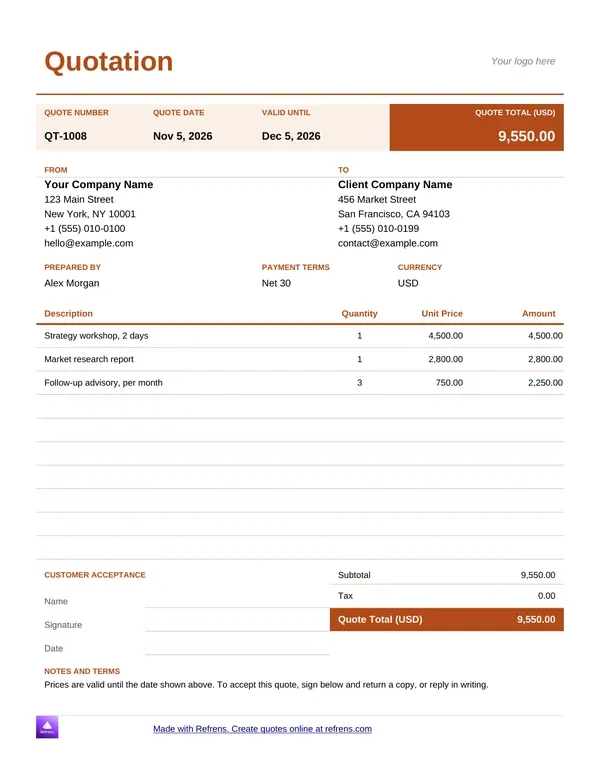
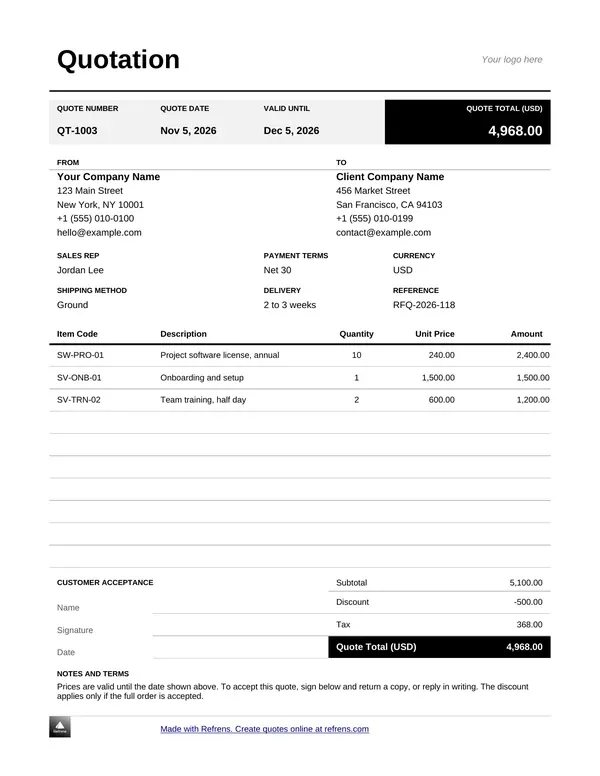
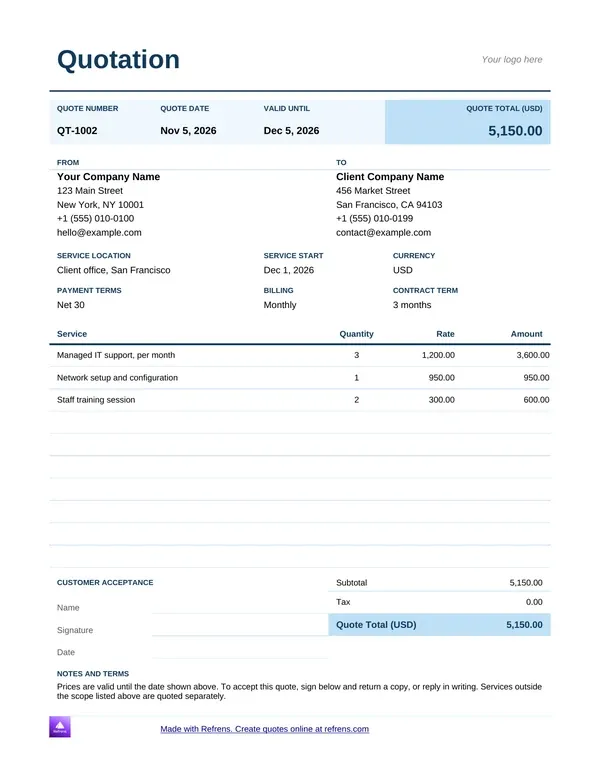
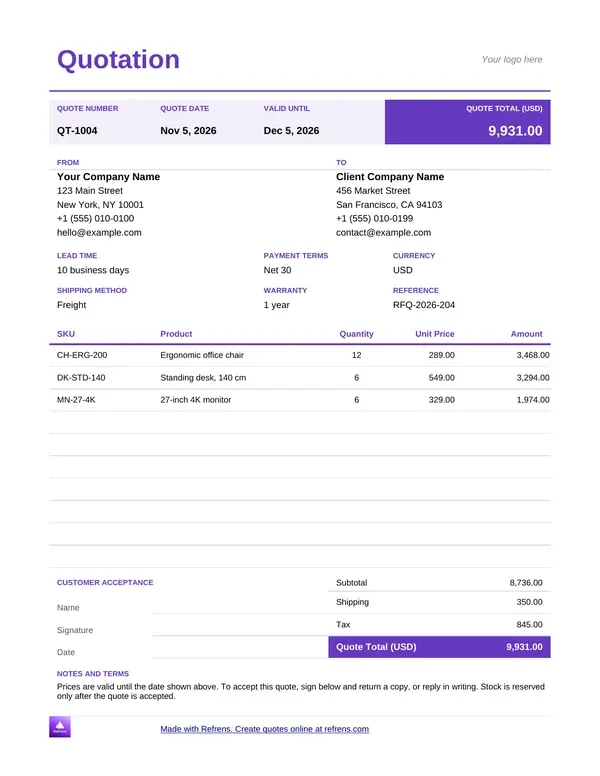
Quotation Template in PDF (Add quote details and download it in PDF format.)

1
Quotation Details
2
Design & Share (optional)
1
Quotation Details
2
Design & Share (optional)

Quotation Templates Google Docs

Download Quotation Templates in Google Docs
Create Free Quotation Online
Sample Quote Template - Word
Sample Quote Template Word
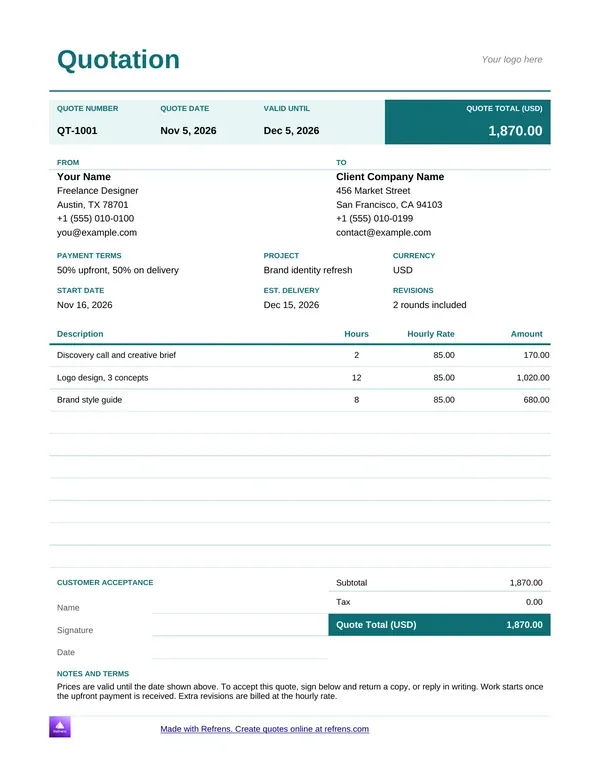
Freelance Quote Template - Word
Freelance Quote Template Word
Sales Quote Template - Word
Sales Quote Template Word
Service Quotation Template - Word
Service Quotation Template Word
Price Quote Template - Word
Price Quote Template Word
Business Quote Template - Word
Business Quote Template Word
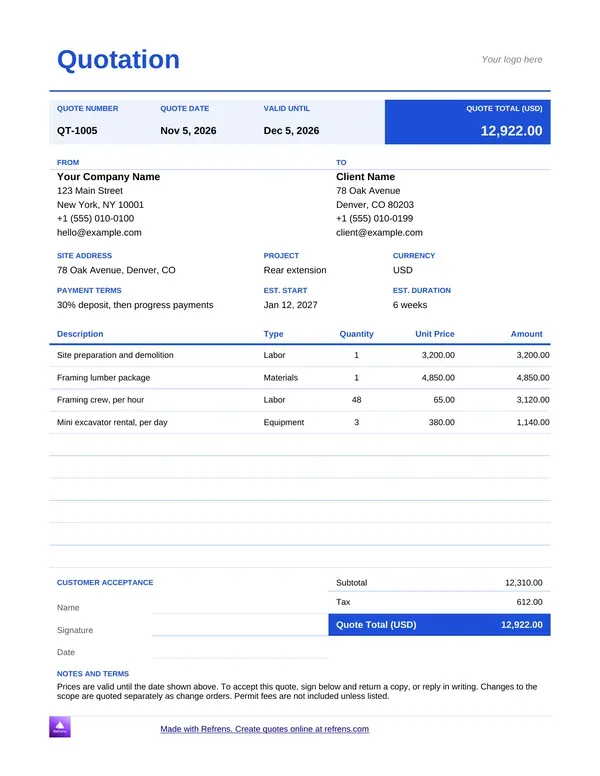
Construction Quote Template - Word
Construction Quote Template Word
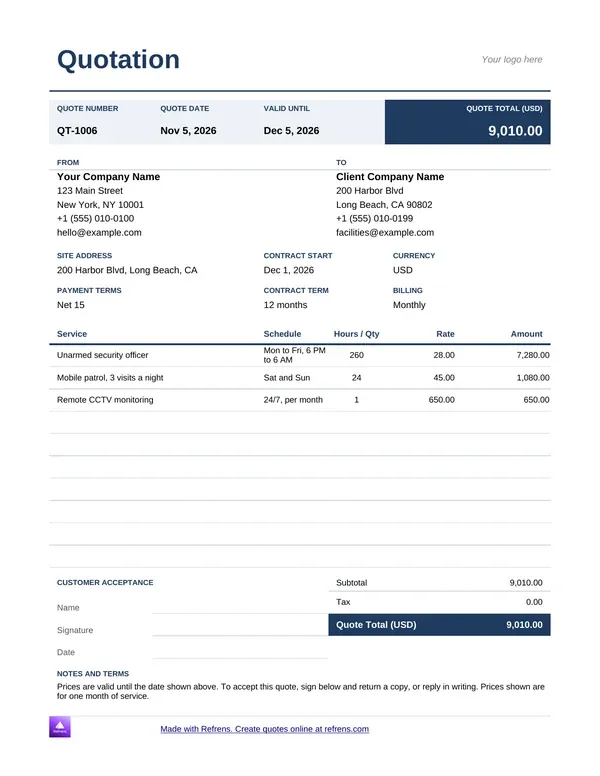
Security Quote Template - Word
Security Quotation Template Word
Product Quotation Template - Word
Product Quotation Template Word

Quotation Templates Google Sheets

Download Quotation Templates in Google Sheets
Sample Quote Template - Excel
sample quote template excel
Simple Quote Template - Excel
Business Price Quote Template - Excel
Business Price Quote Template Excel
Service Quote Template - Excel
Service Quote Template Excel
Product Quotation Template - Excel
Product Quotation Template Excel
Construction Quote Template - Excel
Construction Quote Template Excel
Price Quote Template - Excel
Price Quote Template Excel
Excel Quote Template
Excel Quotation Template
Freelance Quote Template - Excel
Freelance Quote Template Excel
Contractor Quote Template - Excel
Contractor Quotation Templae in Excel

Free Quote Templates Excel and Word

You need a quote out today. Start from a blank page and you lose an hour on layout. Start from a file below and you lose a few minutes.

These quote templates come in Word and Excel. Each one has a quote number, a Valid Until date, fields for your company and VAT registration numbers, a line-item table and a 15% VAT line. The Excel files do the maths for you. They work out line totals, discounts, VAT and the grand total.

Not sure which format to pick? Word suits a short quote with a lot of text. Excel suits a quote with many lines and prices. Both save as PDF.

Quotation Template in Word

A quote is your first sales document. The buyer should find your price, your terms and the date the offer ends without hunting for them.

The Word files give you that layout. Open one, replace the sample text and send it. You can add your logo, your letterhead and your own terms. Nothing is locked.

No file matches your trade? Use the sample quote. It works for any business.

Prefer to fill a template on screen? Refrens also has free quotation templates that create a PDF in the layout you choose.

Freelance Quotation Template Word and Excel

Freelancers sell hours. So the quote lists hours.

The freelance template has a column for your hourly rate next to the hours and the line total. Estimate the hours, set your rate and the price follows. Add a separate line for revision rounds. Say what an extra round costs.

Quoting a fixed fee? Drop the hours and write one line per deliverable.

Service Quotation Template Excel and Word

Cleaning. IT support. Housekeeping. A call centre. Every service quote answers one question: what exactly am I paying for?

The service template puts each service on its own line with a rate and a quantity. Use the description to say what is included and what is not. That one habit stops most scope arguments before they start.

Send it as a PDF when you finish. The client gets a fixed layout and a fixed price.

Catering Quotation Template Word and Excel

Catering quotes break on headcount. Guests drop out. Guests turn up. The price has to move with them.

Price the food per guest and multiply by the number of guests. List hire, staff and delivery as separate lines. Put the minimum number of guests and your deposit in the terms. In the Excel file, change the guest count and every total updates.

Set a short Valid Until date. Food prices move. Give the client a short window to say yes.

Price Quotation Template Word and Excel

A price quote is the plainest quote. Item, quantity, rate, amount. Nothing else gets in the way.

Change the rate in the Excel file and the amount, the VAT and the total update on their own. The Word file keeps the same layout when you want to edit by hand. Use either one for repeat customers. Change the Valid Until date every time you reuse it.

Sales Quotation Template Word and Excel

A sales quote puts the full price in front of the buyer before they commit. Show the total, the discount and the VAT on separate lines. The buyer sees what they pay and why.

Use it for trade and wholesale orders. Show a volume discount as its own line instead of changing the rate. The original price stays visible, and the buyer sees the saving.

Business Quote Template Excel and Word

Your quote carries your brand. Add your logo and company details at the top.

Show labour, materials and VAT as separate lines when the job needs them. Then add your terms: when payment is due, how delivery works, what happens if the scope changes. A quote with no terms is an offer with no edges.

Construction Quotation Template Excel and Word

Construction quotes run long. Materials. Labour. Plant hire. Subcontractors. Every line moves the total.

Use the Excel file for a big job. Split the work into sections and list materials and labour apart. Excel adds each section, carries it to the grand total and adds VAT at 15% at the end. The Word file suits a short scope letter for a small building job.

Material prices change. Set a Valid Until date you can honour.

Security Quotation Template Word and Excel

Security quotes sell hours of cover. Name the site, the number of guards, the shift hours and the monthly rate. Put the contract length and the notice period in the terms.

Use the Word file for a formal proposal. Use the Excel file when one quote covers several sites or shifts, because it adds the lines for you.

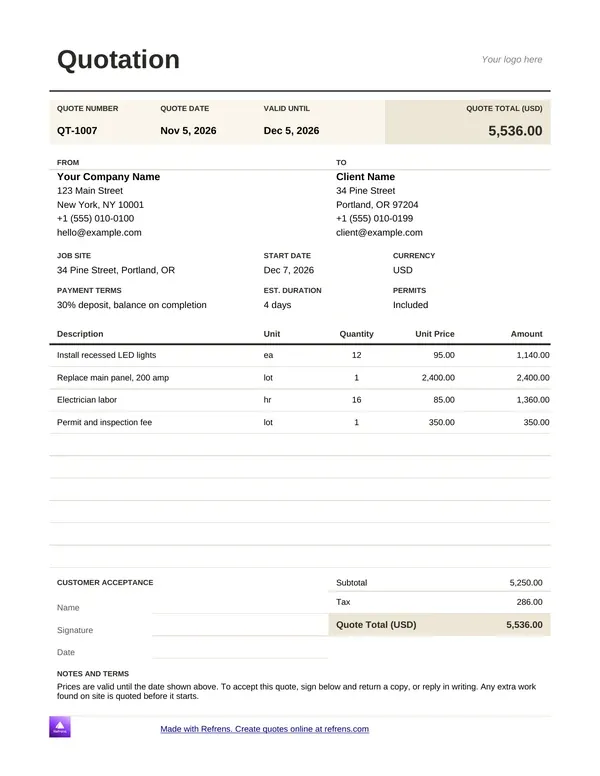
Contractor Quote Template Word and Excel

Contractors quote by the job. Scope first. Then materials, labour, a deposit and a timeline.

The contractor template lists each part of the work with its cost and adds the VAT. Add your start date and how long the job takes. A clear timeline answers the first question every client asks.

Product Quote Template Word and Excel

Selling goods? Quote the product, the quantity and the unit price.

Product quotation template in Word. The Word file holds:

  • Company information: name, address, phone number and email.
  • Quote number and date.
  • Customer information: name, address and contact details.
  • Product descriptions: what you quote, with quantities and specifications.
  • Pricing: the cost of each product and the total for the quantity.
  • Payment terms: methods, deadlines and any discounts or fees.
  • Validity period: how long the quote holds.
  • Terms and conditions: delivery, returns and warranty.
  • A closing line that thanks the client and invites questions.

Product quotation template in Excel. The Excel file has columns for item description, quantity, unit price, discount and total. Formulas calculate the totals and apply the discounts.

Wholesalers and distributors: use the discount column for bulk orders. Put delivery terms in the notes.

Quotation Template Word and Excel: How to Download and Fill It In

Eight steps.

  1. Choose the template that matches your business. If none fits, take the sample quote.
  2. Click it. The file opens in Google Docs or Google Sheets. You do not need a Google account to see it.
  3. Choose File, then Download, and pick Word (.docx) or Excel (.xlsx).
  4. Open the file and replace the sample text with your company name, address, company registration number and VAT registration number.
  5. Add the client's details and your quote number.
  6. List each item with its quantity and rate.
  7. Set the Valid Until date and add your terms.
  8. Check the totals, save the quote as a PDF and send it.

How to Create a Quote in Excel?

Build your own and you spend the first hour on formulas, borders and print settings. Start from a template and the maths is done.

If you still want to build it yourself, five formulas do the job. Here is an illustrative catering quote for 60 guests.

  • Line total. Quantity times rate. Catering for 60 guests at R185 each gives R11,100.
  • Second line. Hire of 8 tables at R120 each gives R960.
  • Subtotal. Add the lines. R11,100 plus R960 gives R12,060.
  • VAT at 15%. Subtotal times 15%. R12,060 times 15% gives R1,809.
  • Total. Subtotal plus VAT. R12,060 plus R1,809 gives R13,869.

In Excel, the line total is =B2*C2, the subtotal is =SUM(D2:D3), VAT is =D4*0.15 and the total is =D4+D5. Change the guest count in cell B2 and every figure moves.

The templates above already hold these formulas. Open one, type your quantities and rates, and read the total.

Save a Word or Excel Quote as a PDF

Send PDFs, not working files. A PDF keeps your layout and stops anyone changing your price.

  • Word. Choose File, Save As, then PDF.
  • Excel. Choose File, Save As, then PDF. Check the page first. Set it to fit one page wide so a column does not spill onto a second page.
  • Google Docs or Google Sheets. Choose File, Download, then PDF.

Name the file with the quote number and the client, for example Q-0042-Client-Name.pdf. You will find it in seconds a year from now.

VAT on a Quote in South Africa

VAT in South Africa is 15%. If you are registered for VAT, show the price before VAT, the VAT and the total as separate figures. Each template has a VAT line and a field for your VAT registration number. If you do not charge VAT, delete the line.

A quote is an offer. It is not a tax invoice. After the client accepts, you issue a tax invoice for the work. Make it with the free online invoice generator.

Elements of Every Quote Template

Every quote needs the same bones, whatever your trade.

  • A clear title. Write "Quotation" or "Quote" at the top.
  • Your branding. Add your logo or company letterhead.
  • Quotation By. Your name, address, phone, email, company registration number and VAT registration number.
  • Quotation To. The client's name, address, phone and email.
  • Quote number and date. One number per quote. Never reuse one.
  • Valid Until date. The day your price stops holding.
  • Items. Description, quantity, rate and amount for each line. Add discounts and extra charges here.
  • Totals. Subtotal, VAT at 15% and the total in rand.
  • Terms and conditions. Payment, delivery, deposit and what changes the price.
  • Signature or company stamp. It shows who stands behind the quote.

Miss one and the client phones you to ask. Or goes to someone whose quote answers it.

Six Quote Mistakes That Cost You the Job

Each mistake sits next to the field that prevents it.

  • No Valid Until date. The client accepts your price six months later, after your costs have changed. Fill the Valid Until field every time.
  • VAT left unclear. The client reads R11,500 and expects it to include VAT. You meant R11,500 plus VAT. Show the price before VAT, the VAT and the total on separate lines.
  • Vague line items. "Services, R8,000" invites an argument. Name the service, the quantity and the rate.
  • A reused quote number. Two quotes with one number cause confusion when the client says yes to "quote 0041". Give every quote its own number.
  • Terms left out. Payment dates, deposits and delivery belong on the quote. Leave them out and you negotiate them later, on the client's terms.
  • Sending the editable file. A Word or Excel file lets anyone change a number. Send the PDF.

Check the six before you hit send. It takes a minute.

Word, Excel or PDF: Which One Should You Use?

Use Word when the quote is mostly words. A scope of work, a proposal, a few prices.

Use Excel when the quote is mostly numbers. Many lines, discounts, VAT, a total that has to be right.

Use PDF to send either one. Keep the Word or Excel file as your working copy. Send the PDF.

Not sure? Count the lines. Five lines or fewer, Word is fine. More than that, take Excel.

What a Word or Excel Quote Cannot Do

A file is a good start. It has limits.

  • It does not number your quotes. You keep the count. You avoid the duplicate.
  • It does not catch a wrong total in Word. You type the sums by hand. A slip goes out under your name.
  • It does not tell you if the client opened it. You wait and guess.
  • It does not become an invoice. When the client says yes, you retype the quote into a new document.
  • It does not keep your quotes together. Files sit in folders, email threads and WhatsApp chats.
  • It does not keep your books. Accepted quotes, invoices and payments need a home. Use accounting software for that.

Send a few quotes a month? A file does the job. Send more, and every retyped quote is another chance for a mistake. That is when quotation software pays for itself.

Quotation Template PDF

Want the quote built for you? Fill in the form at the top of this page, or use the free online quotation generator. Add your quote details, then download a PDF. Refrens does the totals and the VAT.

How to create a quote using a PDF quotation template?

  1. Scroll to the quote form on this page and click "Create Your First QUOTE".
  2. Add a title and your logo. Set the quote number and date, and set the Valid Till Date.
  3. Fill in "Billed By" with your business details and "Billed To" with your client's.
  4. Add each line: item name, quantity and rate. Add a thumbnail image to an item if you want the client to see it.
  5. Add VAT at 15%. Add a discount or an extra charge if you need one.
  6. Add your terms, notes and signature.
  7. Review the quote and click "Save and Continue". If you have no account, Refrens asks you to sign up. It is free.
  8. Download the PDF. Or send the quote by email, WhatsApp or a link.

You can fill in the form before you sign up. The free plan covers 15 documents a year.

Features of Quote Templates

Customised Templates

Change the template to fit your quote. Add custom columns and fields. You do not need to type the same details again for every quote.

Colours

Pick the colours of your quote. Set the margins and the print format too.

Keep Records

Stop searching your computer for old quotes. Manage and track every quote in one place on Refrens.

Quotation to Invoice

Turn an accepted quote into an invoice in one click with Refrens invoicing software. You do not build the invoice from scratch.

Track Your Quotations

Email a quote and see whether your client opened it.

Schedule Your Email

Pick a future date and time. Refrens sends the quote on time, even when you are not at your desk.

Multiple Currencies

Quote in rand, or in the currency your client pays in.

Create a quote on Refrens for free.

Which Document Do You Need?

  • A quote in a Word or Excel file that prices the work before the client agrees: you are on the right page.
  • A quote you build online, then download as PDF: use the online quotation generator or the online quote layouts.
  • A bill after the work is done: use the invoice generator, or start from invoice templates.
  • An invoice for payment before delivery: proforma invoice templates.
  • An order to a supplier: purchase order templates.
  • Quotes, invoices and records in one place: quotation, invoicing and accounting software.

Pick Your File and Send the Quote

Pick a quotation template in Word or Excel above, replace the sample text and send the quote as a PDF. Word suits a short quote. Excel suits a quote with many lines and a total that has to be right.

When the files start to slow you down, move the quote into Refrens. It calculates the VAT, shows whether the client opened your email, keeps every quote in one place and turns the accepted quote into an invoice. Start free.

FAQ

Is there a quote template in Word?

Yes. This page has Word quote templates for freelancers, services, catering, sales, business, construction, security, contractors and products. Click a template, download it as a Word file and replace the sample text with your details.

Where can I download a free Excel quotation template?

Right here. Choose an Excel template from the list above. It opens in Google Sheets. Choose File, then Download, and pick Excel (.xlsx). The Excel files calculate line totals, discounts, VAT and the grand total.

How do I turn a Word or Excel quote into a PDF?

Open the file and choose File, Save As, then PDF. In Google Docs or Google Sheets, choose File, Download, then PDF. In Excel, set the page to fit one page wide before you save, so no column spills onto a second page.

How do I create a quote template in Excel?

Make a header with your company details, then a table with item, quantity, rate and amount. Multiply quantity by rate for each line, add the lines for a subtotal, multiply the subtotal by 15% for VAT and add the two for the total. Or skip the build and download one of the Excel templates above, where the formulas already work.

What is a quote template?

A quote template is a document the seller prepares for a potential buyer. It describes the product or service on offer and its price. It works like an estimate. The buyer sees the product or service name, rate, description, applicable tax and discounts. Once the buyer accepts the quote, you convert it into an invoice. On Refrens that takes one click.

How to make a quotation using a quote template?

Using a Refrens quote template, you can create a quotation in a few minutes. The steps:

  1. Add your business logo for a professional look.
  2. In the Billed By section, add your business details: business or freelance name, email and phone.
  3. In the Billed To section, add your client's business details.
  4. In the line items section, add the product or service name, description, rate, quantity and discount.
  5. At the end, add your terms and conditions, notes and a signature.

What must be included in a quote template?

A quote template must include:

  • "Quote" or "Quotation" at the top of the document.
  • The quote number and date.
  • The Valid Until date.
  • The logo of the company.
  • The seller's details, with company registration and VAT registration numbers.
  • The buyer's details: name, address and contact number.
  • The product or service name, quantity and rate.
  • The subtotal, VAT at 15% and the total in rand.
  • Terms and conditions.
  • Accepted modes of payment.
  • A signature.

Can I customise the quote template?

Yes. In the Word and Excel files, you can edit anything: text, columns, logo, terms and layout. In the Refrens quote form, you can add your business logo, custom columns and custom fields. You can add custom formulas when a quote has calculations across several columns. You can also hide the totals on the quote.

What are the different quotation formats?

You can create a quotation in Word, Excel or PDF. Choose the one that suits you.

1. Word quote template. Word is easy to use and installed on most computers. You type your details into a simple document and share it quickly.

  • Pros: familiar and simple, easy to edit or print.
  • Cons: needs manual formatting, no automatic calculation, and errors are easy to miss.

2. Excel quote template. Excel gives you more control over the numbers. You can add formulas for totals and tax.

  • Pros: built-in calculations, good for price breakdowns.
  • Cons: needs spreadsheet skills, looks plain, and is easy to change by mistake.

3. PDF quote template. PDF is made for sharing. Once saved, nobody can edit the file.

  • Pros: fixed layout, looks professional.
  • Cons: hard to edit, and you need another tool to create it.

Refrens gives you the three in one place. You fill in a form, and Refrens calculates the totals and tax and gives you a PDF. Pick a style, such as a freelance, service or construction quote, and send it.

Should a quote show VAT?

Yes, if you are registered for VAT. Show the price before VAT, the VAT at 15% and the total as separate figures, so the client sees exactly what they pay. If you are not registered for VAT, you do not charge it, and you leave the VAT line out.

Is a quotation a tax invoice?

No. A quotation is an offer to supply goods or services at a price. A tax invoice is the document you issue after the client accepts and you supply. Keep both. Send the quote first and the tax invoice second. Create the tax invoice with an invoice generator.

How long should a quote stay valid?

Long enough for the client to decide, and short enough that your costs do not move under you. Choose the shortest window your client can reasonably meet, and write the Valid Until date on the quote. Use a shorter window for jobs with changing material or food prices.

When should I stop using Word or Excel for quotes?

Stop when retyping, numbering and chasing take more time than selling. If you quote often, repeat the same lines, or lose track of which quotes the client opened, move your quotes into Refrens. You keep the same details, the quote becomes an invoice in one click and every quote lives in one place.

About Refrens block

Refrens is cloud invoicing and quotation software for small businesses, with a built-in sales CRM and inventory. Service industries such as agencies, consultants, IT businesses and T-KIBS (Technology- and Science-Based KIBS), along with contractors, wholesalers, traders and distributors, use it to quote, bill and keep records in one place. More than 6,300 South African businesses created quotations on Refrens, and more than 2,900 created invoices.


Made with and in Bengaluru.

Refrens Internet Pvt. Ltd. | All Rights Reserved
This site is protected by reCAPTCHA and the Google Privacy Policy and Terms of Service apply.
Refrens ISO Certificate